🐿️ Squirrel User Guide
Everything you need to know — from your first bookmark to vault sync. Your data never leaves your browser.
Screenshots throughout this guide use demo data for illustration. Your sections and bookmarks will look similar but reflect your own content.
1 · What is Squirrel?
Squirrel is a private bookmark manager that runs entirely inside your browser. There is no account to create, no cloud to sync with, and no subscription to manage. Every bookmark you save stays in your browser's local storage — nowhere else.
You organise bookmarks into sections (like folders), tag them for quick filtering, and search across everything in real time. Set Squirrel as your browser's homepage and your entire link library is one tab away.
Free tier: unlimited bookmarks, unlimited sections, search, manual backup and restore. Premium ($9 one-time): auto-backup every 30 minutes, 7-day daily backup history, and vault folder sync for cross-device access.
2 · First Run
The first time you open Squirrel you will see the welcome screen with two fast paths to get started:
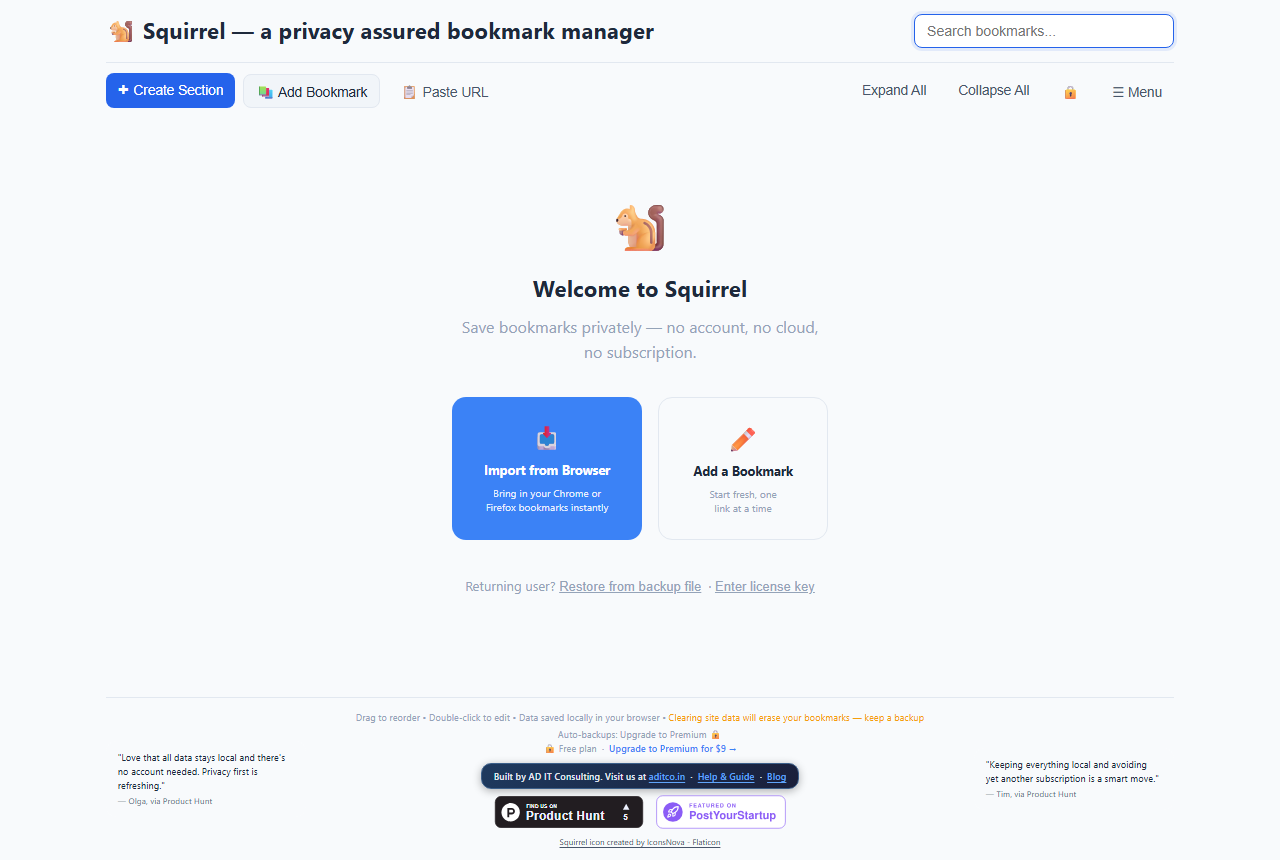
The welcome screen offers two starting points: import existing bookmarks from your browser, or add a single link to begin fresh.
- Import from Browser — exports your Chrome or Firefox bookmarks as an HTML file and imports them into Squirrel as organised sections. See Section 8.
- Add a Bookmark — starts fresh. Opens the Add Bookmark form so you can save your first link immediately.
If you are returning after clearing your browser data, the welcome screen also shows Restore from backup file and Enter license key links.
Squirrel stores data in IndexedDB — a local browser database. Clearing "Cookies and site data" in your browser settings will erase your bookmarks. Keep regular backups. See Section 10.
3 · Creating Sections
Sections are the top-level containers for your bookmarks — similar to folders. You might create sections named Work, Personal, AI Tools, or anything that fits how you think.
Click + Create Section in the toolbar:
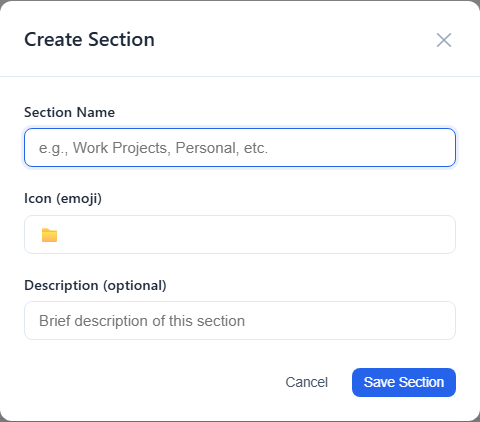
Give the section a name, pick an emoji icon, and add an optional description that appears as a subtitle under the section heading.
- Section Name — required. Appears as the section heading.
- Icon — a single emoji. Defaults to 📁 if left blank. Paste any emoji directly.
- Description — optional subtitle visible when the section is expanded.
Click Save Section. The section appears in the main view immediately.
Editing and deleting sections
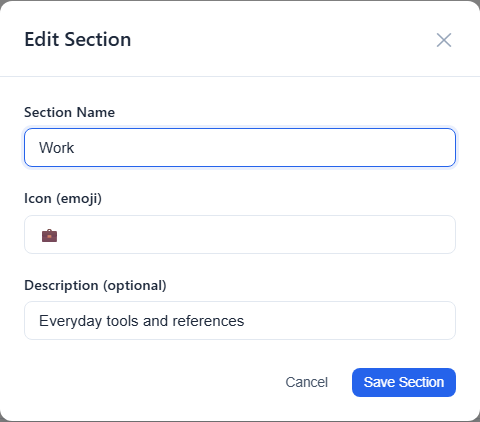
Hover over any section header. Two buttons appear on the right: ✏️ to edit the name, icon, or description; 🗑️ to delete the section and all its bookmarks. Deletion is permanent — export a backup first if unsure.
4 · Adding Bookmarks
Click Add Bookmark in the toolbar to open the form:
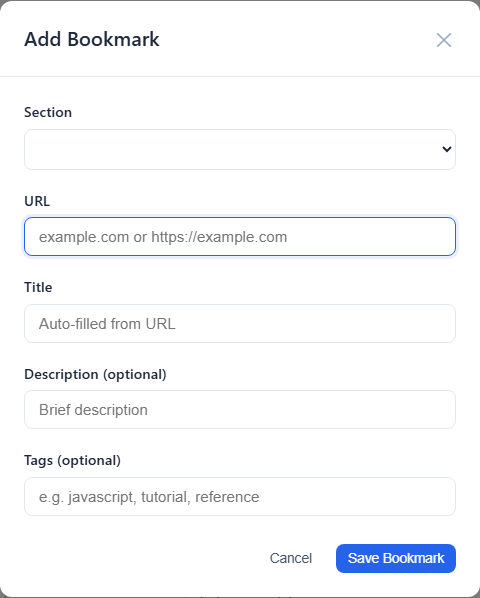
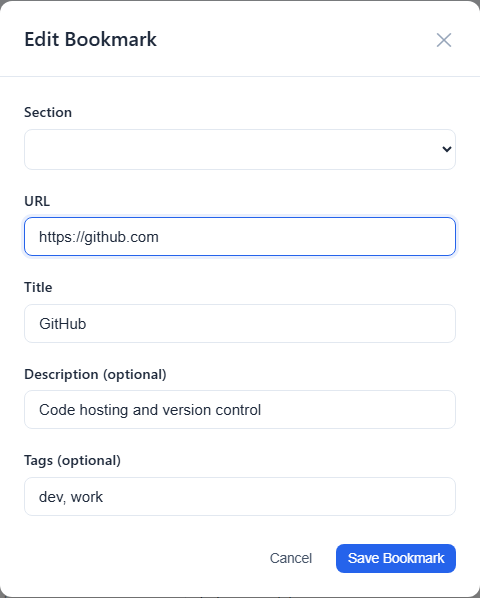
Title, URL, and section are required. Description and tags are optional but make search and filtering far more powerful.
- Title — the name you will click. Keep it short and recognisable.
- URL — the full web address, e.g.
https://example.com. - Section — which section this bookmark belongs to.
- Description — a brief note about the site. Searchable.
- Tags — comma-separated words, e.g.
dev, docs, reference. Tags appear as clickable chips and can be used to filter across all sections.
Squirrel automatically fetches the site's favicon from the domain so you can recognise links at a glance.
Editing a bookmark
Hover over a bookmark row and click ✏️, or double-click anywhere on the row to open it for editing.
Deleting a bookmark
Hover over the bookmark and click 🗑️. Deletion is immediate with no confirmation prompt.
5 · Search
The search box in the top-right corner filters bookmarks across all sections as you type. It matches against the bookmark's title, URL, description, and tags simultaneously.
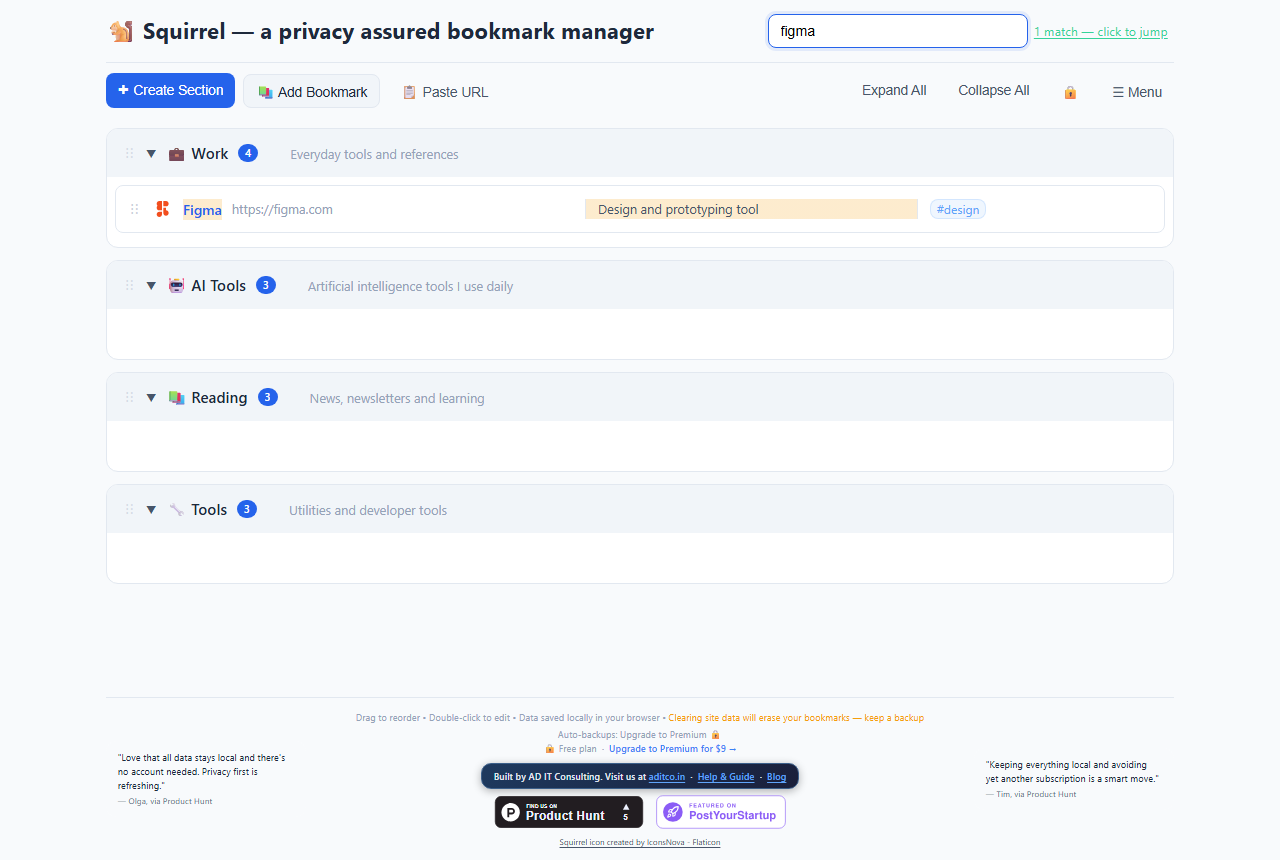
Typing "figma" instantly narrows the list. Sections with no matches collapse automatically.
Press Esc or click ✕ in the search box to clear the filter and return to the full view.
Search also matches tags. If you tagged a bookmark design, searching "design" will surface it even if the word doesn't appear in the title or description.
6 · Tags
Tags are free-form labels attached to bookmarks (comma-separated in the Add/Edit form). They appear as small clickable chips on each bookmark row.
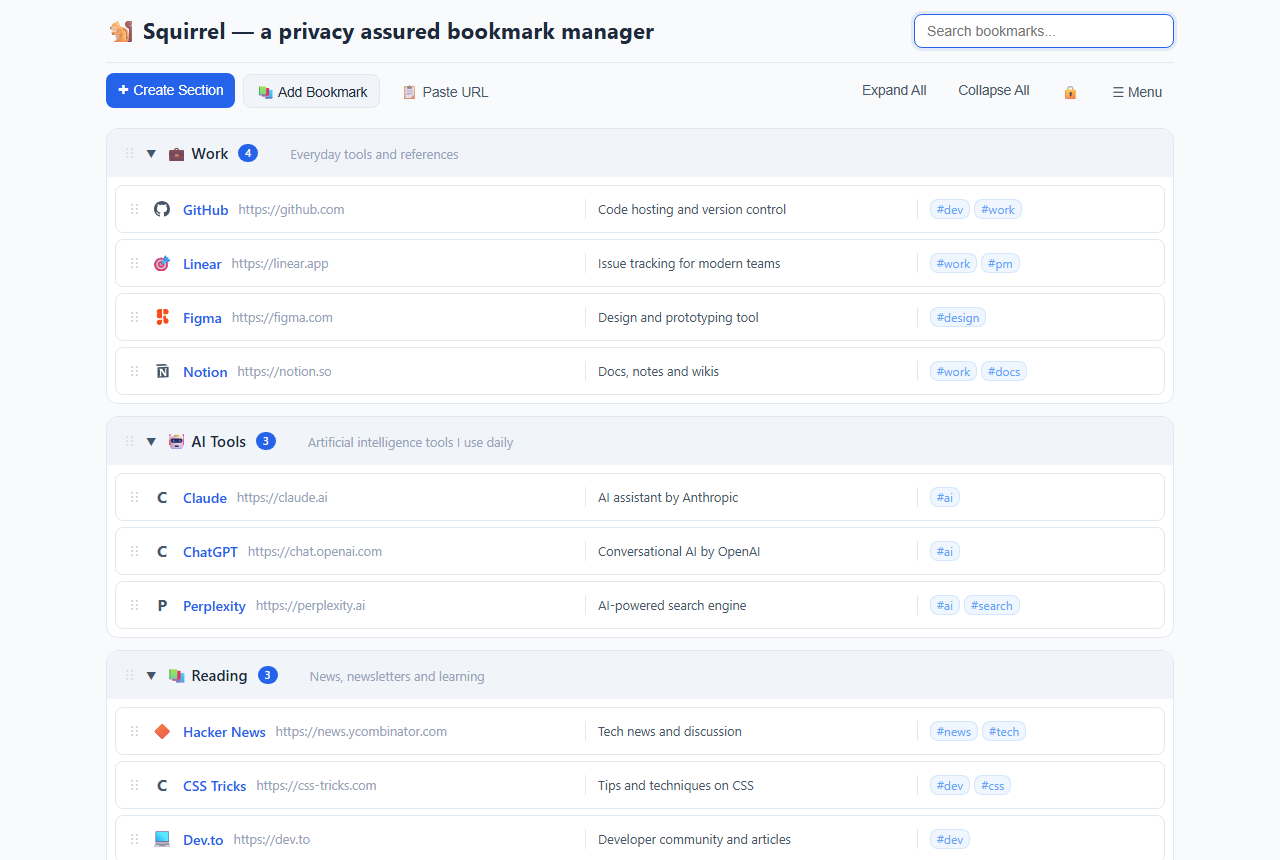
Tags like #dev, #ai, and #work appear as chips on the right of each bookmark row.
Filtering by tag
Click any tag chip to activate a tag filter. Only bookmarks with that tag remain visible across all sections. A filter indicator bar appears at the top — click ✕ in the indicator to clear.
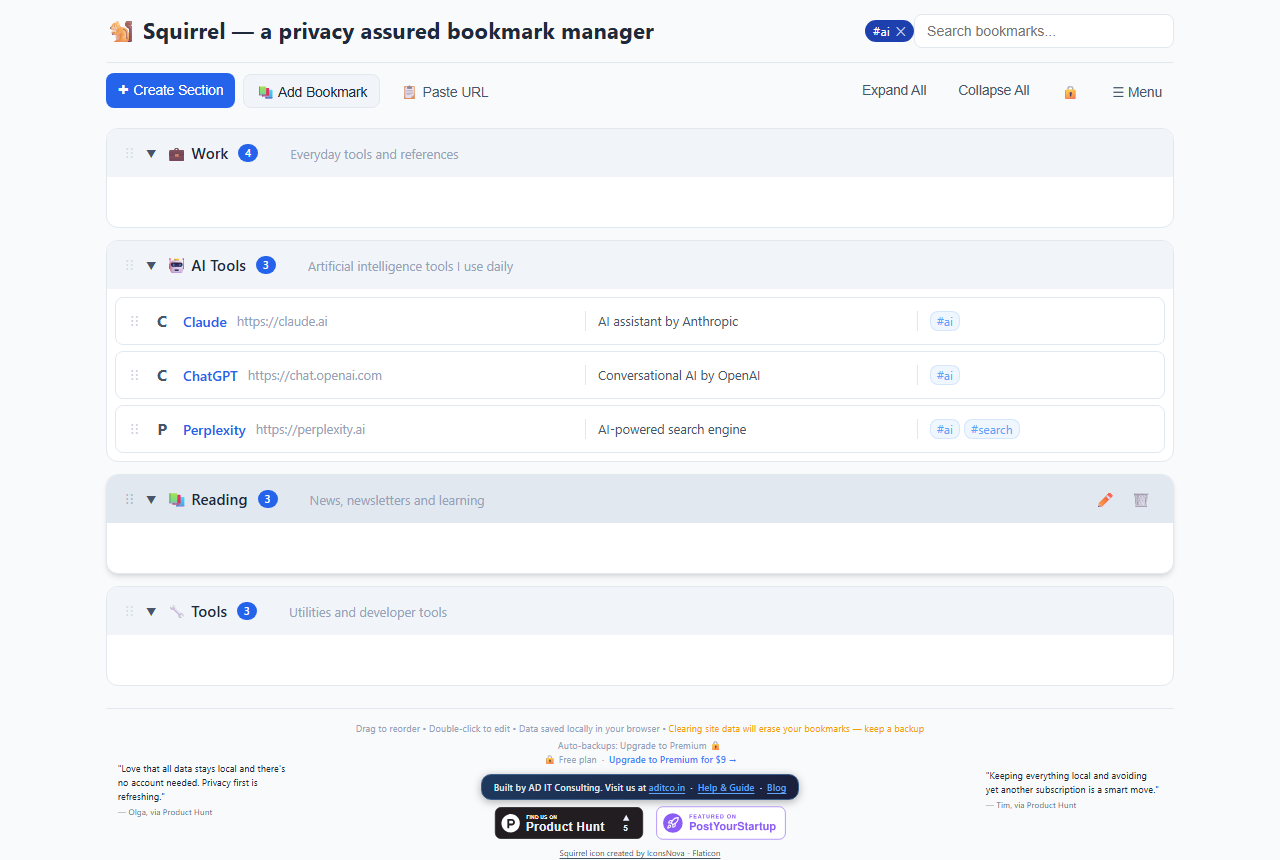
Clicking #ai shows only AI-tagged bookmarks, regardless of which section they are in.
Keep tags short and consistent. A tag dev is more useful than development and coding as separate tags that fragment the same group.
7 · Organising
Drag and drop
Grab the ⋮⋮ drag handle on the left of any bookmark row and drag it to a new position — within the same section or into a different section entirely. Section headers have their own ⋮⋮ handle to reorder the sections themselves.
Collapsing sections
Click anywhere on a section header to collapse it. The bookmarks fold away and only the title and bookmark count remain visible. Click again to expand. Use Collapse All / Expand All in the toolbar to act on every section at once.
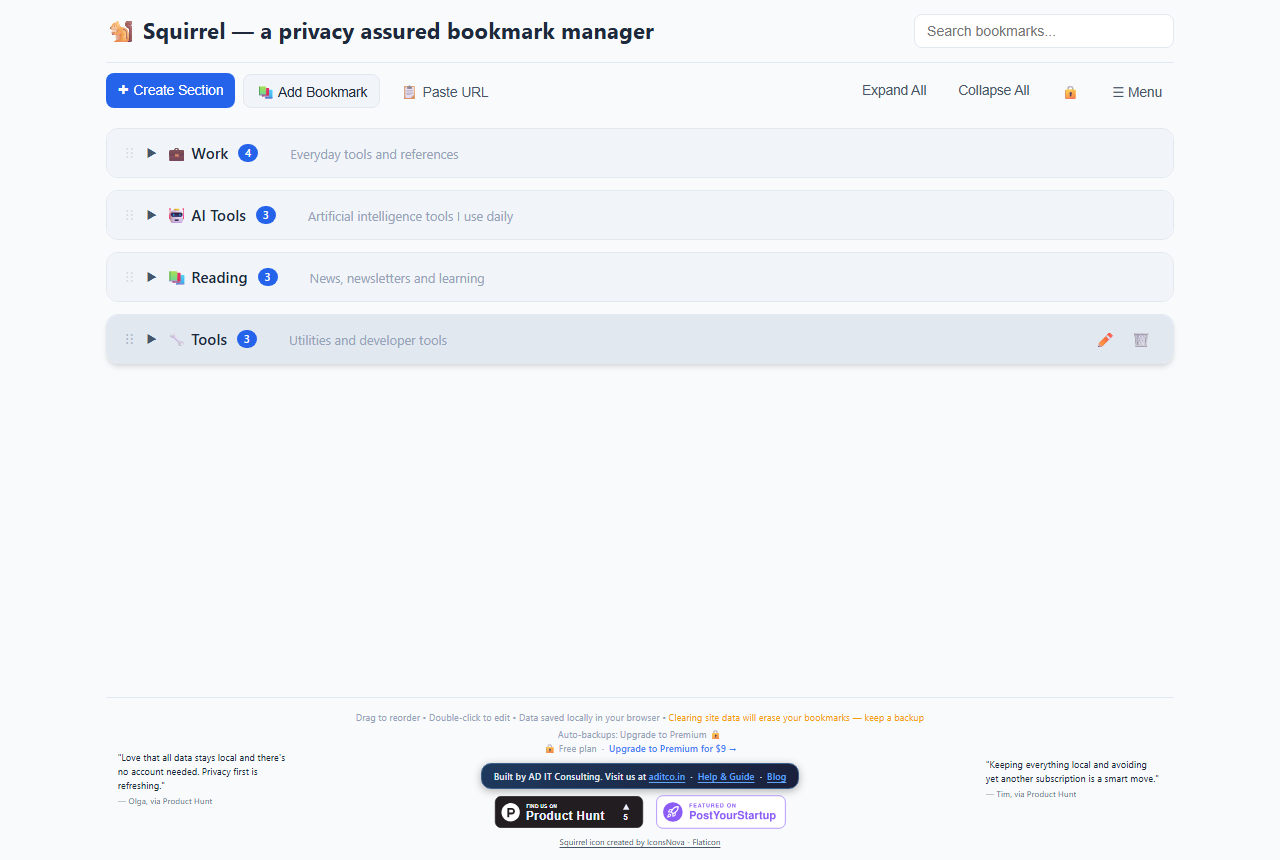
Collapsed sections save vertical space. The blue badge shows how many bookmarks are inside without requiring expansion.
8 · Import from Browser
If you already have bookmarks in Chrome, Firefox, Edge, or Safari, you can bring them into Squirrel in one step.
Step 1 — Export from your browser
- Chrome / Edge: open
chrome://bookmarks→ ⋮ menu → Export bookmarks. Saves a.htmlfile. - Firefox: Bookmarks menu → Manage Bookmarks → Import and Backup → Export Bookmarks to HTML.
- Safari: File → Export Bookmarks.
Step 2 — Import into Squirrel
- Click ☰ Menu → 📥 Import from Browser.
- Select the
.htmlfile you exported. - A preview shows how many bookmarks were found and which folder each came from.
- Click Import. Each browser folder becomes a separate Squirrel section.
All users can import unlimited bookmarks. Sections from your browser export become separate Squirrel sections.
9 · Bookmarklet
The bookmarklet lets you save any page to Squirrel in one click without navigating away from the site you are on.
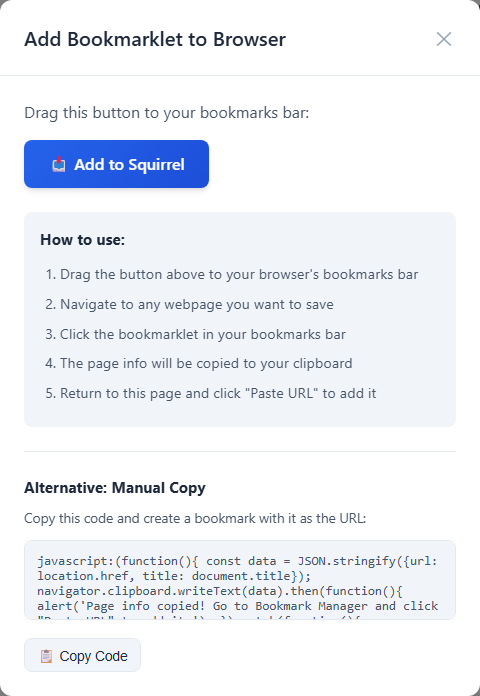
Drag the "Add to Squirrel" button onto your browser's bookmarks bar. If drag-and-drop is blocked, copy the code and create a bookmark manually using it as the URL.
Installing
- Make sure your browser's bookmarks bar is visible (Ctrl + Shift + B on Chrome/Edge).
- Drag "📥 Add to Squirrel" onto your bookmarks bar.
- Fallback: copy the code from the text area, create a new bookmark manually, and paste the code as its URL.
Using it
Navigate to any page. Click Add to Squirrel in your bookmarks bar. Squirrel opens in a new tab with the current page's title and URL already filled in. Choose a section, add tags, and save.
Clipboard Detection — the fastest way to add a URL
Copy any URL from any tab, switch back to Squirrel, and press Ctrl + V anywhere on the page. A small toast appears asking Add "example.com"? — press Enter or click Add. The form opens pre-filled with the title field already focused.
This works anywhere on the page — you don't need to click first. If the bookmark form is already open, Ctrl+V pastes into the form as normal.
📋 Paste URL button
An alternative to Ctrl+V — click Paste URL in the toolbar to read from the clipboard directly. Useful if your browser asks for explicit clipboard permission first.
10 · Backup & Restore
Because your bookmarks live in the browser, they can be lost if you clear site data. Back up regularly.
Backup to file
- Click ☰ Menu → 💾 Backup to File.
- A
.jsonfile is downloaded containing all your sections, bookmarks, tags, and descriptions. - Store it somewhere safe — OneDrive, Dropbox, or a local folder you back up separately.
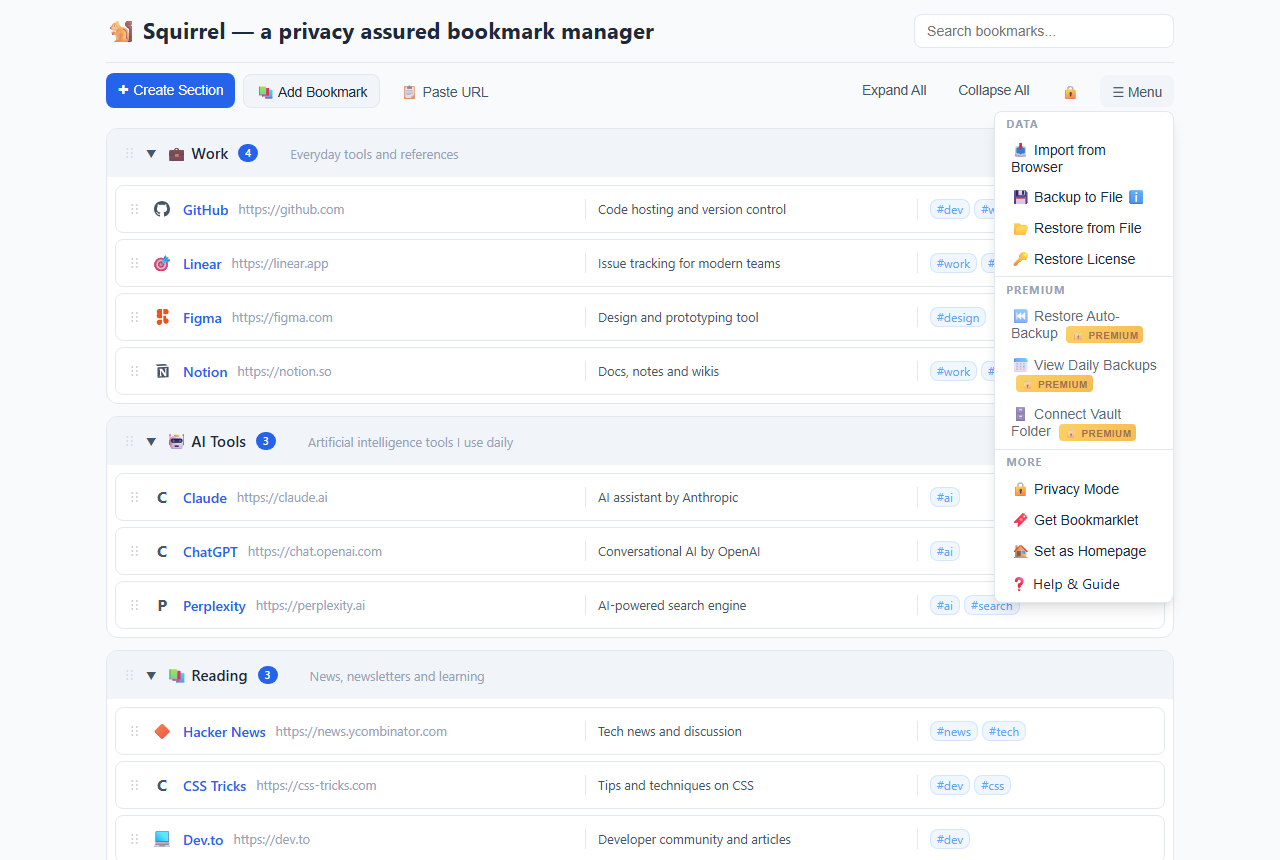
The ☰ Menu contains all data management options: import, backup, restore, and premium features.
Restore from file
- Click ☰ Menu → 📂 Restore from File.
- Select the
.jsonbackup file. - All bookmarks are restored exactly as they were at backup time. Any bookmarks added since are replaced — export a fresh backup first if you need to merge.
Restoring replaces all current data. Back up first if you have recent additions you want to keep.
Restoring your license key
If you clear browser data and lose premium access, click ☰ Menu → 🔑 Restore License. Enter your BM-XXXX-XXXX-XXXX key from your Gumroad purchase receipt email.
11 · Set as Homepage
There are two ways to open Squirrel automatically — via the home button, or by replacing the new tab page.
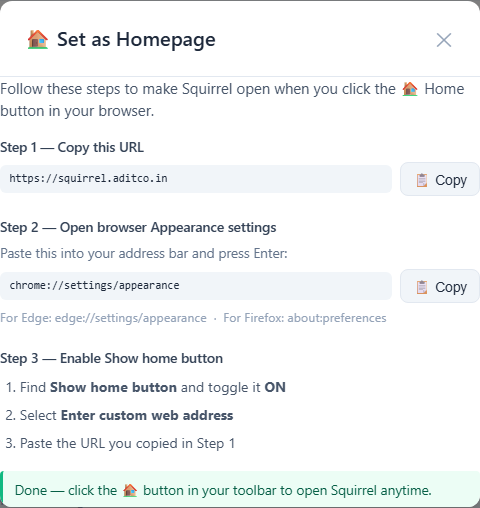
The modal detects your browser and shows the exact settings path. Copy the URL, then paste it into your browser's homepage field.
Option 1 — Home button (recommended, works for everyone)
This makes the 🏠 home button in your browser toolbar open Squirrel.
- Click ☰ Menu → 🏠 Set as Homepage.
- Click 📋 Copy next to the Squirrel URL.
- Click ⚙️ Open Settings (or follow the shown path for your browser).
- Go to the Appearance section, toggle Show home button ON, select Enter custom web address, and paste the URL.
Chrome shortcut: paste chrome://settings/appearance directly into your address bar. Edge: paste edge://settings/appearance.
Option 2 — New tab page (requires developer mode)
This replaces every new tab with Squirrel. Requires loading the app as an unpacked browser extension.
- Click ☰ Menu → 🏠 Set as Homepage to see the full instructions inside the app.
- Open a new tab and go to
chrome://extensions. - Enable Developer mode using the toggle in the top-right corner.
- Click Load unpacked and select the BookMarkManager folder.
- Open a new tab — Squirrel now appears automatically.
Option 2 requires you to have the BookMarkManager source folder on your computer. Option 1 works for everyone with just the URL.
12 · Free vs Premium
| Feature | Free | Premium ($9 one-time) |
|---|---|---|
| Bookmarks | ✓ Unlimited | ✓ Unlimited |
| Sections | ✓ Unlimited | ✓ Unlimited |
| Search & tags | ✓ Full | ✓ Full |
| Import from browser | ✓ All bookmarks | ✓ All bookmarks |
| Manual backup / restore | ✓ | ✓ |
| Auto-backup every 30 min | ✗ | ✓ 7-day history |
| Auto-backup every 30 min | ✗ | ✓ |
| Vault folder sync | ✗ | ✓ |
| License key activations | — | Up to 3 devices — personal use |
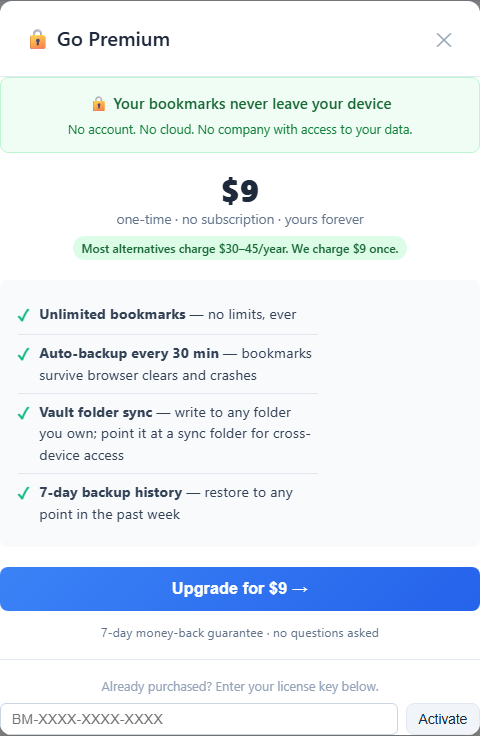
The upgrade modal shows all premium features and the license key entry field at the bottom.
13 · Auto-Backup PREMIUM
Once Premium is active, Squirrel silently saves an auto-backup every 30 minutes whenever the tab is open and there are unsaved changes. You never have to think about it.
Restoring an auto-backup
- Click ☰ Menu → ⏮️ Restore Auto-Backup.
- A list of recent auto-backups appears with timestamps.
- Select the snapshot you want and confirm.
Auto-backup is your safety net for accidental deletions. If you mistakenly delete a section or a batch of bookmarks, an auto-backup from minutes earlier will have them.
14 · Vault Folder Sync PREMIUM
Vault folder sync writes a bookmarks.json file to a folder on your computer every time your bookmarks change. Point that folder at any sync folder for automatic off-device backup — Squirrel never touches a cloud server directly.
Privacy note: If you use OneDrive, Dropbox, or Google Drive as your vault folder, your bookmarks will pass through that company's servers. For fully private cross-device sync, use a self-hosted tool such as Syncthing and point the vault at a Syncthing-shared folder instead.
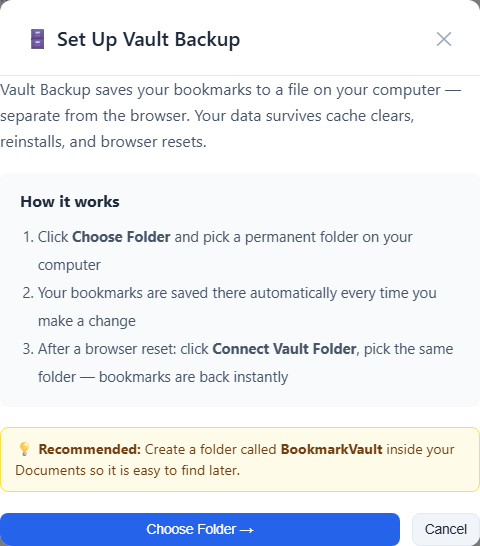
Click "Connect Folder" and choose any folder on your computer. Squirrel writes the backup file; your cloud storage syncs it.
Connecting a vault folder
- Click ☰ Menu → 🗄️ Connect Vault Folder.
- Click Connect Folder and choose a folder (e.g.
OneDrive/Squirrel Backup). - Grant read/write permission when the browser asks.
- Squirrel writes an initial backup immediately and syncs on every change thereafter.
Reconnecting after a browser restart
Browser security requires you to re-grant folder access each session. If Squirrel shows a "vault disconnected" banner, click Reconnect vault folder in the menu and re-select the same folder. Your data is safe — only the file system permission needs to be re-granted.
Restoring from the vault
Use ☰ Menu → 📂 Restore from File and select the bookmarks.json from your vault folder. This works identically to any other restore.
15 · Daily Backup History PREMIUM
Squirrel creates one backup per day (when the tab is open). Free users keep the last 3 days; Premium users keep the last 30 days. You can browse the history and restore from any snapshot.
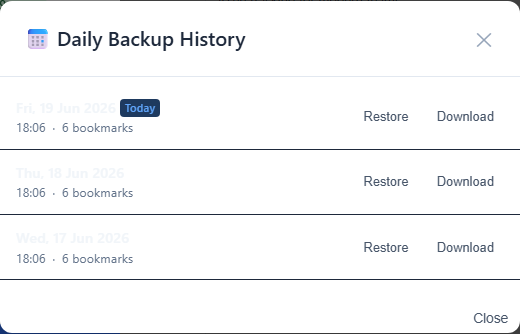
Each entry shows the date and time of the snapshot. Click Restore on any entry to roll back to that day's state.
- Click ☰ Menu → 📅 View Daily Backups.
- The list shows up to 7 dated entries.
- Click Restore next to the entry you want.
Daily backups are stored in IndexedDB alongside your bookmarks. Clearing browser site data will erase them. Pair daily backups with vault sync for truly off-device history.
16 · Activating a License
After purchasing on Gumroad you receive a license key by email in the format BM-XXXX-XXXX-XXXX.
- Click Upgrade to Premium anywhere in the app, or click ☰ Menu → 🔑 Restore License.
- Enter your key in the input field at the bottom of the upgrade modal.
- Click Activate. Squirrel validates the key and reloads with Premium unlocked.
Using on multiple browsers or devices
Your key covers up to 3 devices for personal use — enter it in the activation field on each browser. One license is for your personal use; it is not intended for sharing between different people. If you need to move to a new device and have used all 3 activations, email [email protected] and we'll reset your key.
Lost your key?
Check your original Gumroad purchase receipt email. Or log into gumroad.com/library with the email used to purchase — your key is listed there.
17 · Mobile
Squirrel works on mobile browsers. The layout adapts: sections stack full-width, the toolbar wraps, and modals are scrollable.
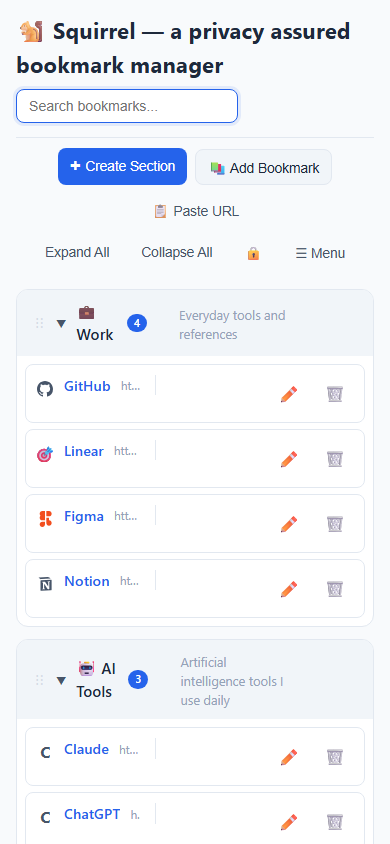
All sections and bookmarks are accessible on a phone-sized screen. Tap any bookmark title to open the link.
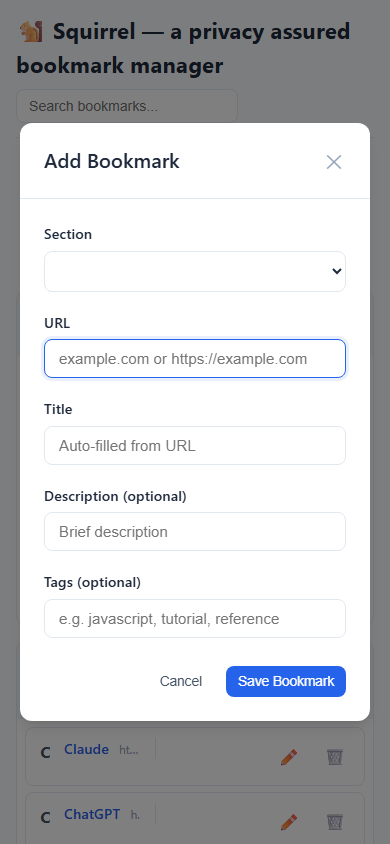
The Add Bookmark form on mobile — scroll down to reach the section selector and tags field.
18 · Privacy Mode
Privacy Mode blurs all bookmark titles, URLs, descriptions, and tags so that people nearby cannot read your bookmarks over your shoulder. Your data is not hidden or deleted — it is visually obscured until you toggle the mode off.
How to activate
- Click the 🔒 button in the toolbar (right side, next to Collapse All and ☰ Menu)
- Or click ☰ Menu → 🔒 Privacy Mode
- Or press Ctrl + Shift + P (Windows / Linux) or ⌘ + Shift + P (Mac)
While active
- A 🔒 Private ✕ pill appears next to the search bar — click it to exit Privacy Mode immediately
- The toolbar lock button turns indigo and changes to 🔓
- The menu item changes to 🔓 Exit Privacy Mode
To exit, use any of the same methods: the toolbar button, the indicator pill, the menu item, or the keyboard shortcut.
Privacy Mode is session-only — it resets when you close or refresh the tab. Your bookmarks are never encrypted or permanently removed by this feature; it is a visual screen only.
19 · Tips & Shortcuts
| Action | How |
|---|---|
| Open command palette | Ctrl + K (or ⌘ + K on Mac) — search bookmarks, sections, and actions |
| Add a new bookmark | Ctrl + N — opens the Add Bookmark form instantly |
| Add URL from clipboard | Ctrl + V anywhere on the page — detects the copied URL and prompts to save it |
| Search bookmarks | Type in the search box (top right) — filters as you type |
| Clear search | Esc or click ✕ in the search box |
| Edit a bookmark | Double-click the row, or hover → ✏️ |
| Delete a bookmark | Hover → 🗑️ |
| Collapse / expand section | Click the section header |
| Collapse all sections | Collapse All in toolbar |
| Expand all sections | Expand All in toolbar |
| Reorder a bookmark | Drag the ⋮⋮ handle on the bookmark's left edge |
| Reorder a section | Drag the ⋮⋮ handle on the section's left edge |
| Move bookmark to another section | Drag it onto the destination section's bookmark list |
| Filter by tag | Click any tag chip on a bookmark |
| Clear tag filter | Click ✕ in the tag filter banner |
| Save current page instantly | Click "Add to Squirrel" in your browser's bookmarks bar (see Section 9) |
| Toggle Privacy Mode | Ctrl + Shift + P (or ⌘ + Shift + P on Mac) — blurs all bookmark content |
| Backup your bookmarks | ☰ Menu → 💾 Backup to File |
| Restore from backup | ☰ Menu → 📂 Restore from File |
Best practice: Back up once a week and keep a copy in cloud storage. On Premium, vault sync does this automatically every time you make a change.
20 · FAQ
Why is it called Squirrel?
Squirrels collect and store acorns — carefully, one at a time, in exactly the right places — so they can find them again when they need them. That's what this tool does with your URLs. The name stuck.
Why isn't Squirrel completely free?
The free tier gives you everything you need to manage bookmarks, including daily backup with 3-day history. Premium extends that to 30-day history, adds auto-backups every 30 minutes, and Vault sync — features that took real time to build. A one-time fee means no subscription, no ads, and no harvesting your data. It's an honest trade.
What is your refund policy?
7-day money-back guarantee, no questions asked. Email [email protected] within 7 days of purchase and we'll refund you in full via Gumroad.
Does my Premium license expire?
No. You pay once and it's yours. There are no renewals, no subscriptions, and no expiry. Your license works offline — it's validated once on activation and then stored locally.
How many devices can I use Squirrel on?
Up to 3 devices for personal use. The license key is stored locally in each browser's localStorage — just paste it into the activation field on each one. If you've used all 3 and need to add a new device, email [email protected] and we'll reset your key.
What does "no cloud" actually mean?
Your bookmarks are stored in your browser's IndexedDB — a built-in local database that never leaves your device. Nothing is sent to any server, ever. When you close the tab, your data stays on your machine. There is no Squirrel account, no sync server, and no backup stored anywhere but your own computer.
What happens if I clear my browser data?
All your bookmarks will be deleted — including any backups stored inside the app. Clearing "site data" in your browser settings wipes IndexedDB. Always export a manual backup (☰ Menu → 💾 Backup to File) before clearing browser data. On Premium, the Vault keeps a copy in a folder on your file system, outside the browser — that copy survives a browser data clear.
Does the auto-backup run every time I make a change?
No — auto-backup runs on a 30-minute schedule, but it skips the run if nothing has changed since the last backup. A change flag is set whenever you save a bookmark, and cleared after the backup completes. This keeps backup files lean and avoids unnecessary writes. If you haven't touched anything, no backup file is created.
Do you have a status page?
Squirrel is a static app served from Cloudflare Pages — one of the most reliable hosting platforms available. There is no custom backend to go down. If you ever see an outage, it's a Cloudflare infrastructure event, which you can check at cloudflarestatus.com.
Why does the price look different for me?
Gumroad applies Purchasing Power Parity (PPP) automatically based on your location. If you're in a country where the standard price is high relative to local purchasing power, you'll see a lower price. This is intentional — we want the tool to be accessible everywhere.
Can I export my bookmarks?
Yes. Go to ☰ Menu → 💾 Backup to File to download a .json file of all your bookmarks. You can restore from this file at any time via ☰ Menu → 📂 Restore from File. Keep a copy in cloud storage for extra safety.
Does Squirrel work offline?
Yes, fully. All logic runs in your browser — there are no API calls during normal use. The only network request is the one-time license activation. Once activated, Premium works without internet access.
How is Squirrel different from browser bookmarks?
Browser bookmarks have no sections, no tags, no search by note, no backups, and no way to add context. Squirrel gives you a full organisation layer — sections, colour-coded tags, per-bookmark notes, and a command palette. It also stays consistent across browsers; your browser's built-in bookmarks don't sync to Firefox if you use Chrome, or vice versa.
Why can't I add a certain website?
Squirrel has a built-in content policy that blocks sites in categories we consider harmful: adult content, gambling, piracy, gore, illegal drug marketplaces, and extremist content. The check runs entirely in your browser using a local list — the URL is never sent to any server to verify.
If you believe a legitimate site was blocked in error, email [email protected] and we'll review it.
Can I get a receipt for my purchase?
Yes — Gumroad sends a receipt to your email address automatically at the time of purchase. If you need a VAT invoice or a re-send, log into your Gumroad account or email [email protected].
How do I get support?
Email [email protected]. We typically respond within one business day.
Can I use Squirrel in Firefox or Safari?
Yes — Squirrel is a standard web app and works in any modern browser (Chrome, Edge, Firefox, Safari, Brave, Arc). The bookmarklet and clipboard detection features work in all of them. The only browser-specific caveat is the new tab extension option (Section 11), which requires Chrome/Edge developer mode.
Why won't reader view open some of my links?
Reader view is designed for articles, blog posts, and long-form text pages — the kind of content Pocket was built for. It fetches the raw HTML and strips everything except the text. A few page types won't work:
- JavaScript-rendered pages (most social networks, dashboards, web apps) — the proxy only sees the empty HTML shell, not the content the browser renders
- Paywalled content — the proxy sees the same paywall page you would see without a subscription
- Sites that block automated access — some publishers actively block non-browser requests
When reader view can't load a page, it shows an Open in browser → link so you can open the original directly. This is the intended fallback, not a bug.
21 · Data & Privacy
Squirrel is built on a simple principle: your bookmarks are yours. Here's exactly what we do and don't do with your data.
- ✅ All bookmark data is stored locally in your browser (IndexedDB) — never on a server
- ✅ No account or sign-up required to use the app
- ✅ No data is ever sent to any server during normal use
- ✅ No tracking of which sites you bookmark or visit
- ✅ License validation is the only external network request — happens once, on activation
- ✅ Visitor analytics via Cloudflare Web Analytics — cookieless, anonymous, GDPR-compliant
- ✅ Works fully offline once loaded — no cloud dependency
- ✅ Favicons fetched directly from each site's own domain — no third-party favicon service ever sees your URLs
Vault sync and privacy: The Vault writes backup files to a folder on your local file system. If you point that folder at a cloud sync service (OneDrive, Dropbox, Google Drive), your bookmark backups will travel to that cloud provider's servers — subject to their privacy policy. For full local-only sync, use Syncthing instead, which syncs between your own devices without any third-party server.
What we collect
| Data | Where it goes | Why |
|---|---|---|
| Your bookmarks, sections, tags, notes | Your browser only (IndexedDB) | Core app functionality |
| License key | Your browser only (localStorage) | Premium activation check |
| Anonymous page view count | Cloudflare Analytics (no cookies, no IP storage) | Understand usage patterns |
| License activation request | Gumroad API (one-time) | Validate your purchase |
What the app never collects
- The URLs or titles of your bookmarks
- Your browsing history
- Cookies or persistent identifiers
- Any data from inside the app during normal use
Gumroad (purchases only): If you buy a Premium license, Gumroad collects your name and email as the payment processor and shares it with us via the seller dashboard — subject to Gumroad's privacy policy. We use this only to support your purchase (e.g. refunds). We do not store it in any database of our own, and we will never use it for marketing.
Built by AD IT Consulting. Questions? [email protected]
↑ Back to top